
🍳Installation Tutorial
Step1. Download
wget https://repo.anaconda.com/archive/Anaconda3-2024.02-1-Linux-x86_64.sh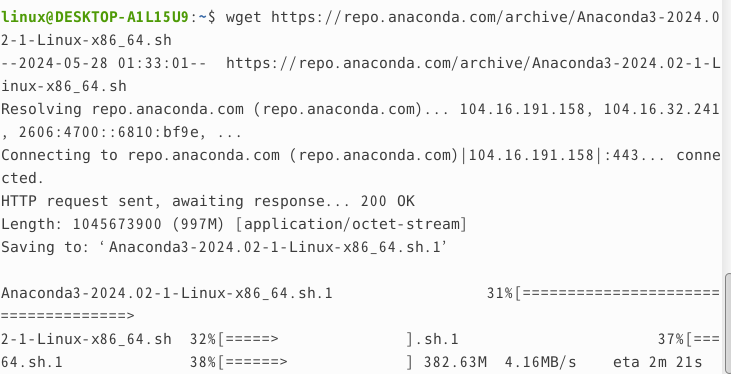
Step2. Installing
bash Anaconda3-2024.02-1-Linux-x86_64.shYou need to view the license agreement that appears afterward to proceed with the installation process, so let’s keep pressing Enter to skip it.
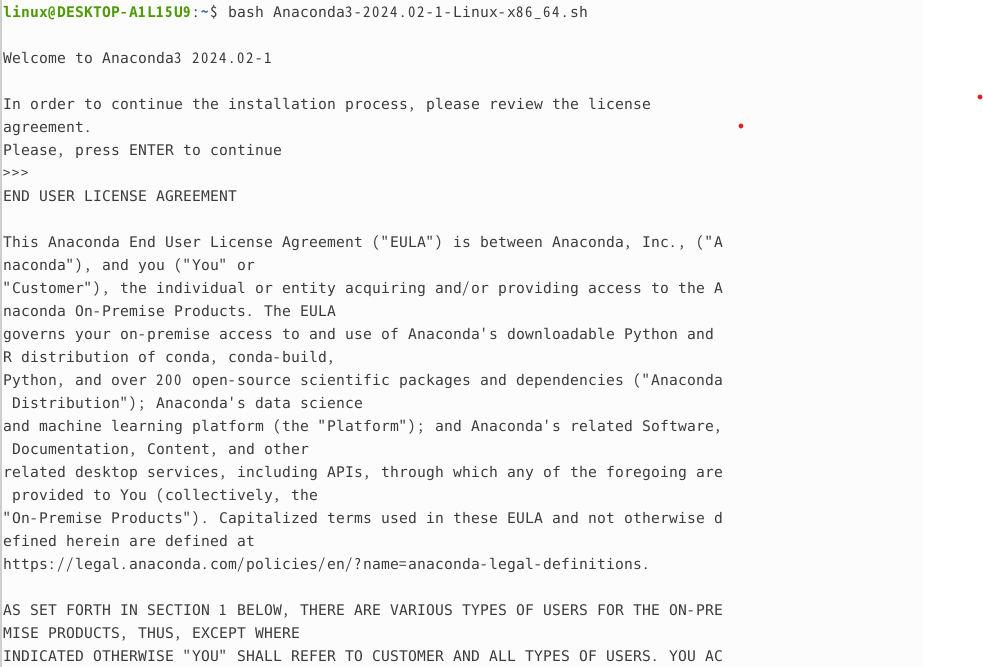
When asked whether you accept the license terms, enter yes.
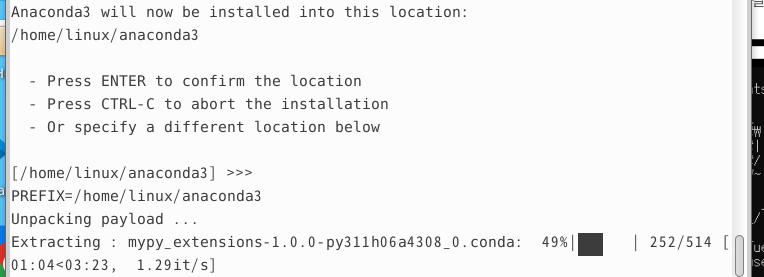
Then, press Enter to confirm the Anaconda installation path.
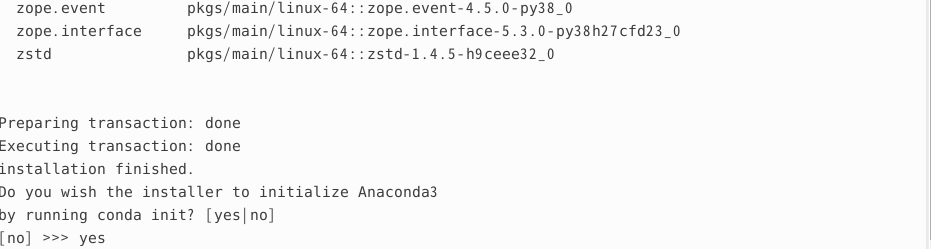
For conda init, select yes as well.

Step3. Check whether conda was installed properly
conda --version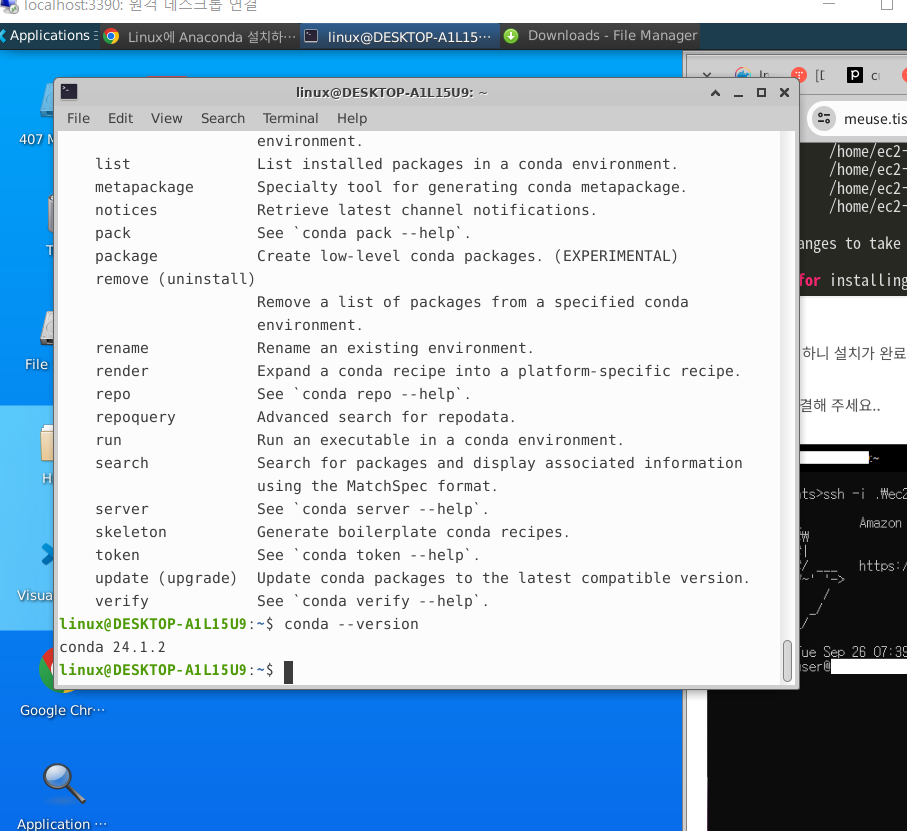
Step4. Try running it
In the case of Bash, you can run it by closing and reopening the terminal or sourcing the .bashrc file.
source ~/.bashrc
Check conda status

Check the Python version with conda
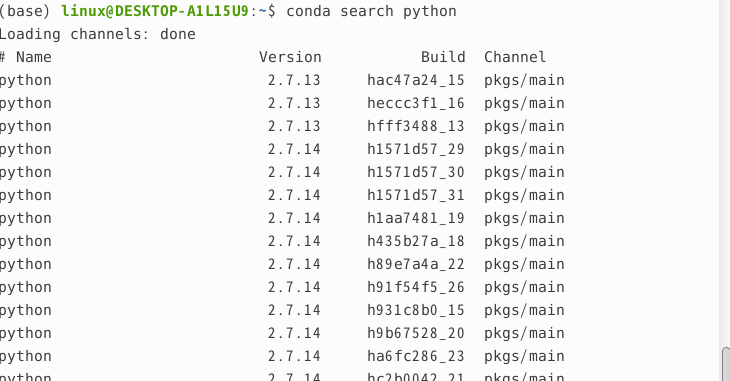
The conda virtual environment installation is finally complete.
🍳 Reflections
The installation of Anaconda, a virtual environment for setting up a development environment, was completed successfully. Independent package management now makes it possible to work on multiple projects. It would be fun to install various programs in the current base environment and create a minimal development environment package of my own.
References