[Neiseuhan’s explanation]
+ Let’s add an auto save feature too!
Parts where I got unfairly screwed over
1. The result only appears in the terminal after saving
There were cases where I created a cpp file but didn’t save it, so the result didn’t appear. It has to be saved for the changes to take effect. After getting tripped up by this, I configured auto save in the settings.
2. Code Runner Extension Setting that caused me trouble while debugging
In Code Runner’s executor map, there is a section called set the executor of each language. There is a part here where you modify settings.json, and I set the g++ compiler version to c++14 after referring to a blog post from 2021. As a result, the next step, configuring and running debugging mode, did not work properly. It seems to have been a version issue. So I changed the setting to c++17.
"cpp": "cd $dir && g++ -std=c++17 *.cpp -o $fileNameWithoutExt && $dir$fileNameWithoutExt",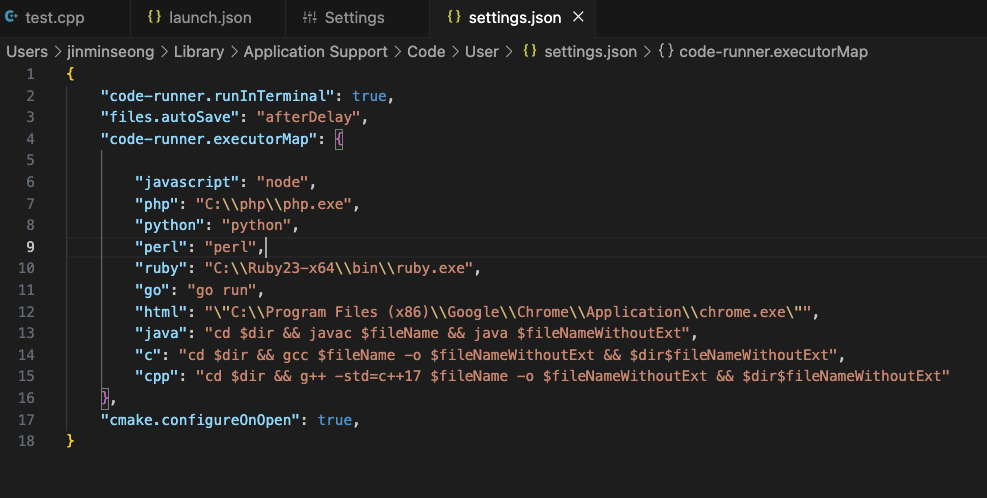
After that, I could see that the Run button in the code file now included debugging functionality too! Nice.
Just as described on the internet, the build of the active file with clang++ appears.
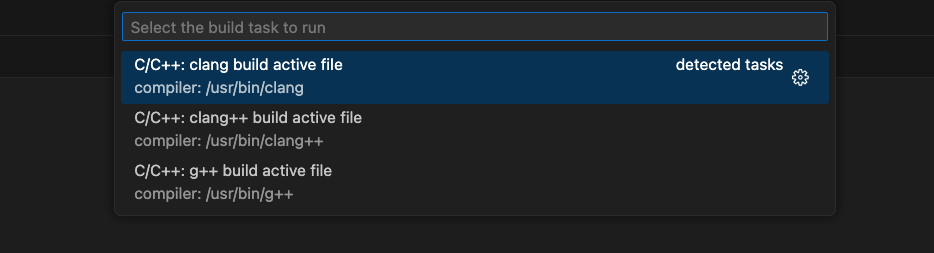
Then, the task.json file that I had been searching for, wondering why it wouldn’t work, was generated. For a more accurate explanation, let’s follow the Neiseuhan’s explanation guide