Motivation
While working on a project with goorm IDE, I repeatedly ran into problems during the GitHub commit process, causing files to become corrupted and the project to return to square one several times due to absurd setbacks. To deploy the website I created through Vercel, I have to commit to GitHub, and to do that, I need to figure out how to commit to GitHub through goorm IDE.
Manual
Initial goorm setup
-
In the goorm container settings, select Default Template, choose the other options, and then create the container.
-
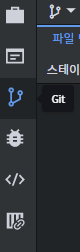
To connect GitHub in goorm IDE, click the Git item in the far-left tab!
-
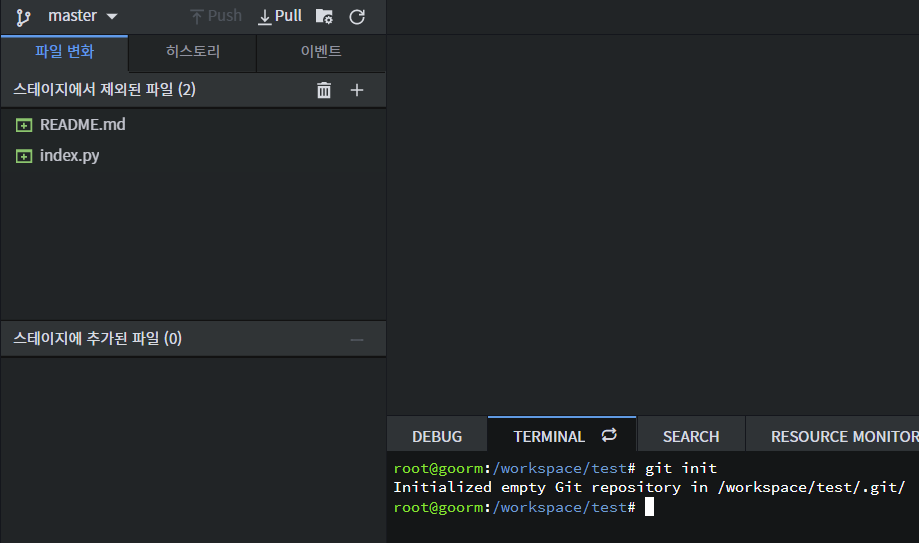
At first, you will see a button labeled “Connect Repository,” but ignore it and initialize the git repository in the terminal with
git init.
(If you ran git init but nothing appears in the Git tab, refresh the page.)
- Add your personal token to goorm IDE
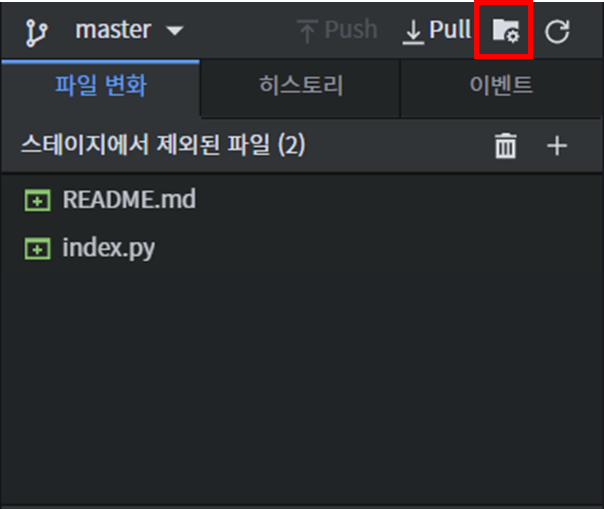
4-1. Click the folder settings button in the upper-right corner of the Git menu.
4-2. Click the User Information tab and enter your GitHub information.
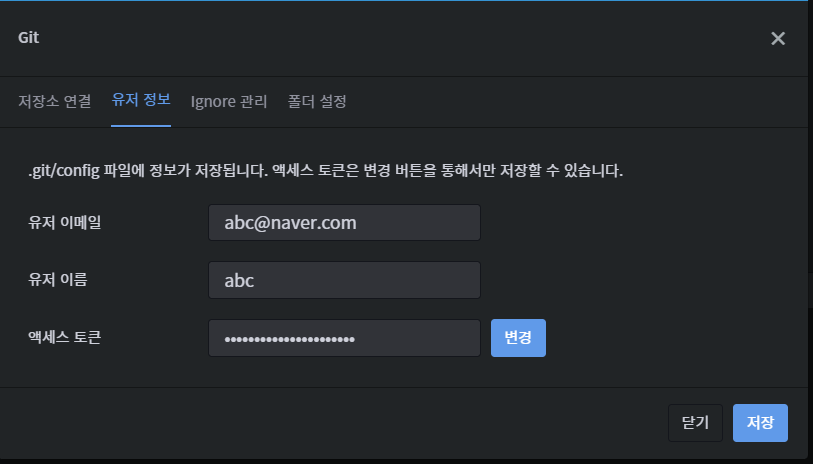 You must enter the access token and click the “Change” button.
(If an error occurs here, please check the “Error Handling” section at the very bottom.)
Then click the “Save” button to save it.
Since goorm IDE does not provide a separate window for entering a token like JetBrains does, you cannot push without entering the access token in advance
-> This was the biggest reason I got stuck when committing through goorm IDE.
Pushing to GitHub using the command line
- Push (from the steps below, the process is the same as a typical push.) ① git add . ② git commit -m “test commit” ③ git remote add origin [your Git URL] ④ git push -u origin master
tip! After pushing, you may be asked to enter a username and password. For the password, you must use the token generated for the repository on GitHub! (Tokens can be issued in Developer Settings under Account Settings.)
For errors that occur during the push process, follow the commands shown in the terminal or search on Google.
How to merge the GitHub master branch into the main branch
- Main commands
- Change branches (when changing forcefully, checkout -f main)
# git checkout main- Merge branches (move to the target branch with checkout, then specify the branch to merge—the example below shows merging the test branch into the main branch)
# git merge testIn case of a conflict during a merge
1. Edit manually
2. Cancel the merge operation
How to test
Try testing it using the method in this link
Reference links