🎯 Specs
Processor: Intel(R) Core(TM) i3-8130U CPU @ 2.20GHz 2.21 GHz System type: 64-bit operating system, x64-based processor Edition: Windows 10 Pro
🍳 Tutorial
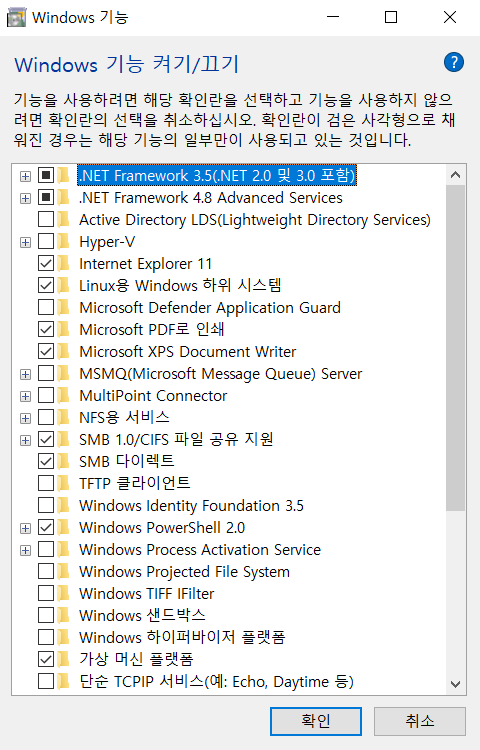
Step1. Turn Windows features on/off
First, in Turn Windows features on or off, check
- Windows Subsystem for Linux
- Virtual Machine Platform
both options and restart the computer.
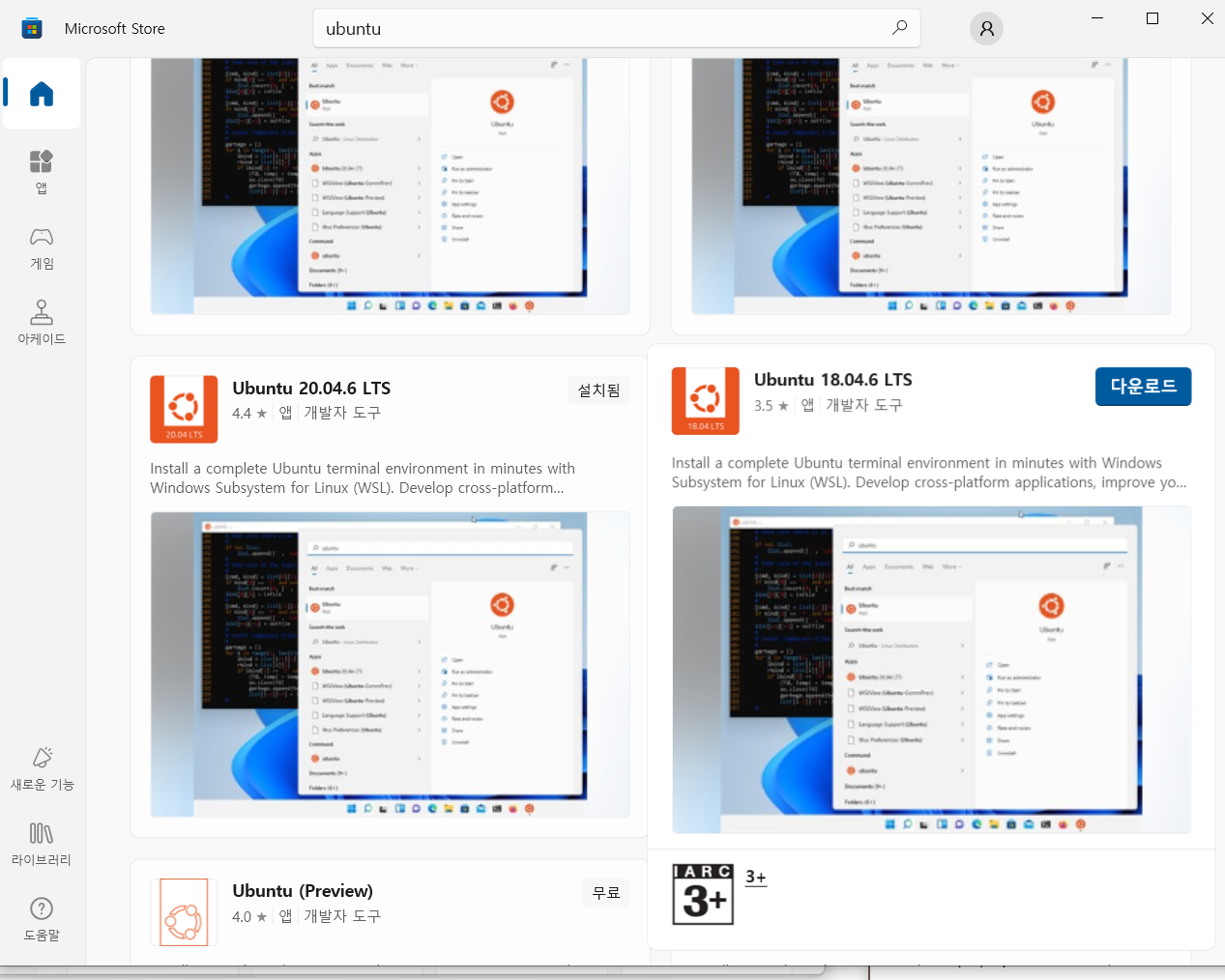
Step2. Download Ubuntu from the MS Store
I installed 20.04.6 LTS.
Step3. Run WSL and install a GUI distribution in the Ubuntu environment
# sudo apt update
# sudo apt -y upgrade
# sudo apt install -y ubuntu-desktop
Step4. Install xfce4 and xrdp
# sudo apt -y install xfce4
# sudo apt-get install xrdp
# sudo cp /etc/xrdp/xrdp.ini /etc/xrdp/xrdp.ini.bak
# sudo sed -i 's/3389/3390/g' /etc/xrdp/xrdp.ini
# sudo sed -i 's/max_bpp=32/#max_bpp=32nmax_bpp=128/g' /etc/xrdp/xrdp.ini
# sudo sed -i 's/xserverbpp=24/#xserverbpp=24nxserverbpp=128/g' /etc/xrdp/xrdp.ini
You need to modify startwm.sh in xfce4.
sudo nano/etc/xrdp/startwm.sh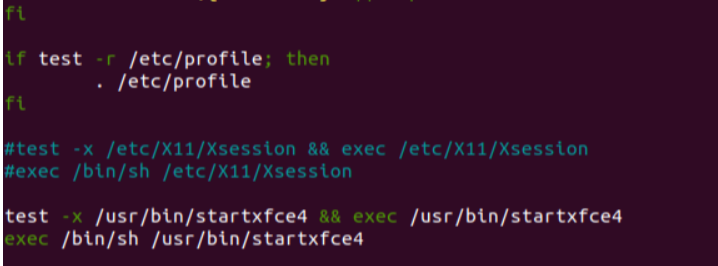
After commenting out the /etc/X11/Xsession section at the very bottom, enter it again as shown in the picture. The commands for nano can be found on this site.
Step5. Run
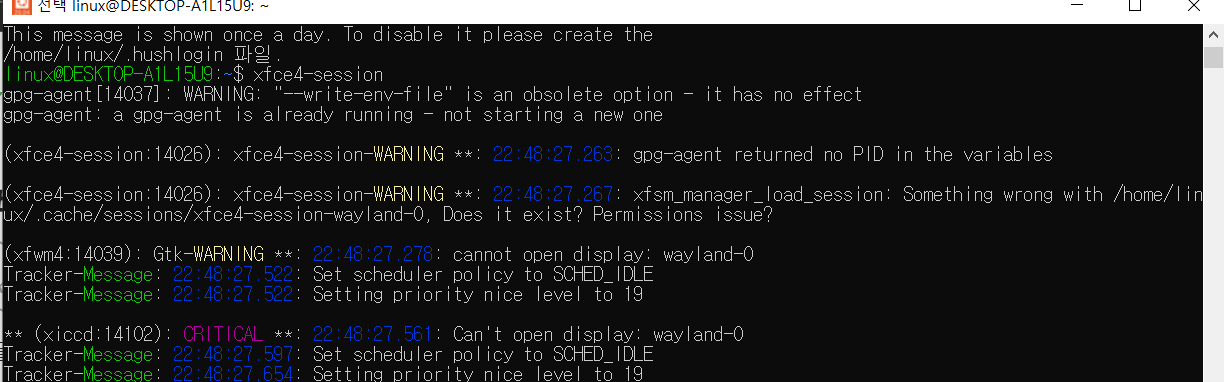
xfce4-sessionOnce you enter it, all the setup is complete.
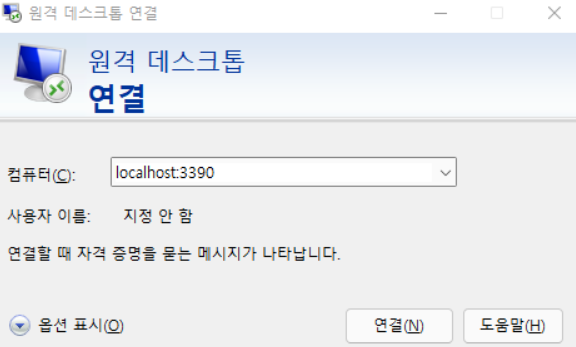
Open Remote Desktop Connection, enter localhost::3390, and click Connect!
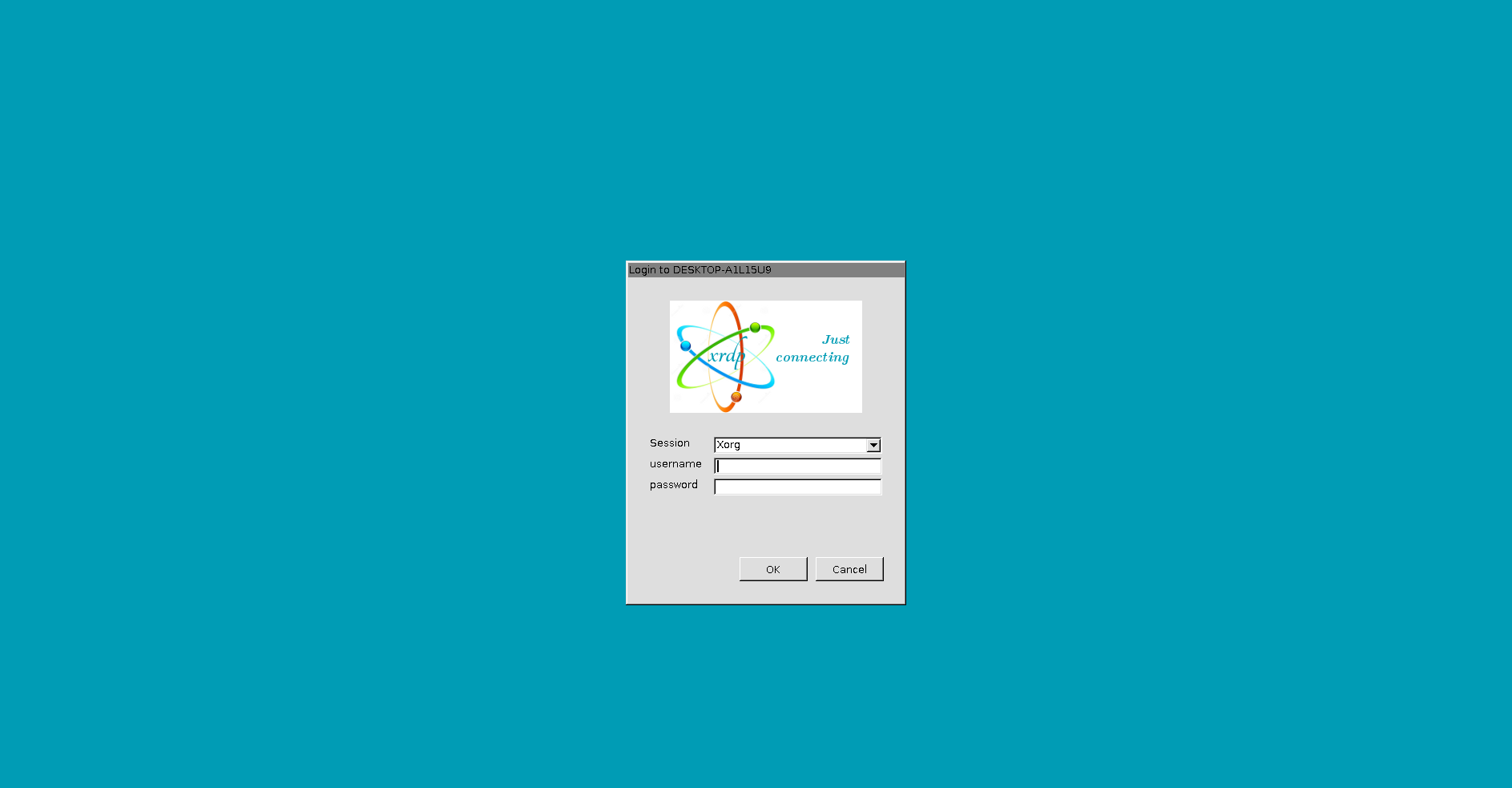
After 650,000 attempts, the installed Linux finally appears, and for the ID and password, simply enter the username and password you set when you initially installed Ubuntu.
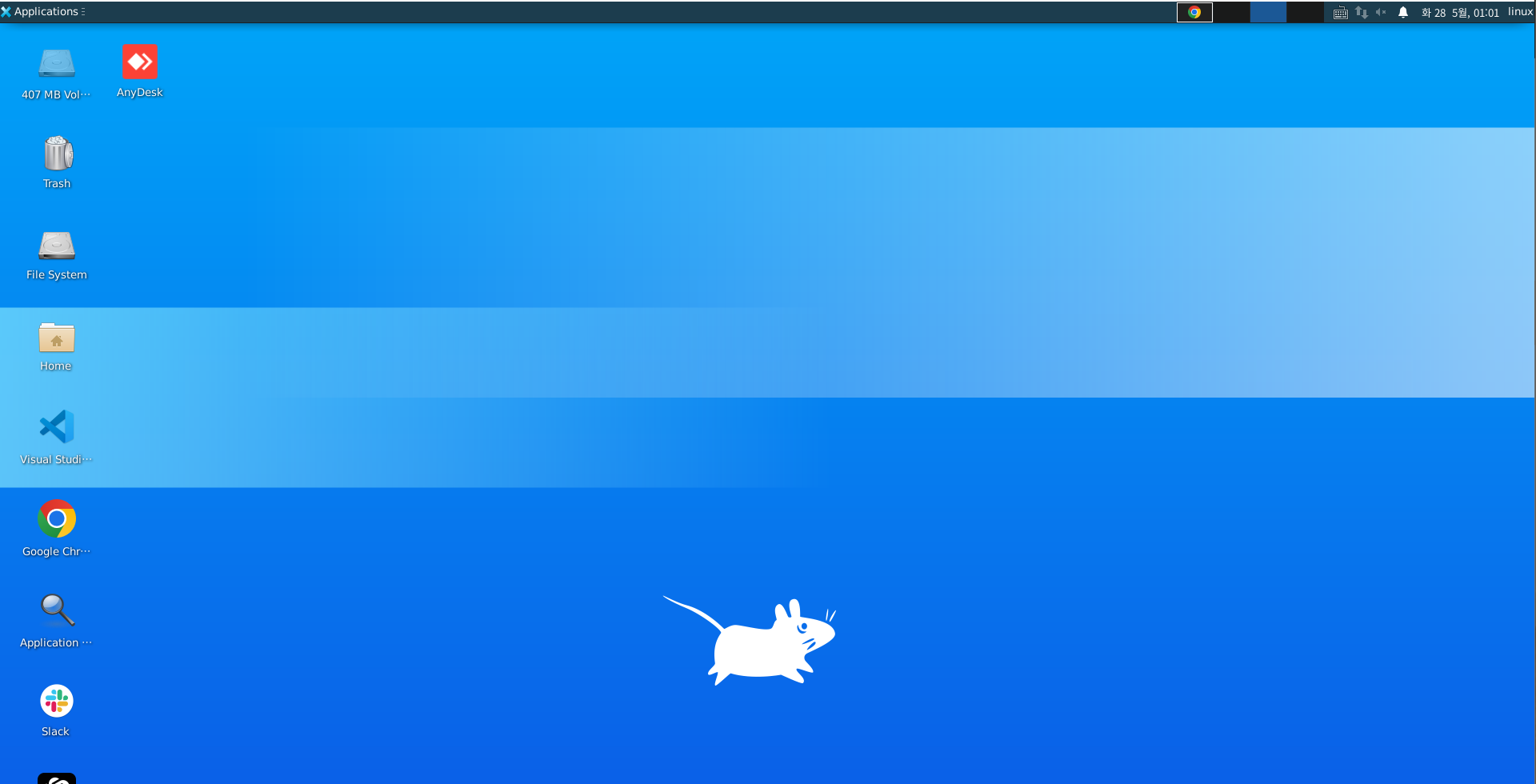
Result
An operating system is best when you can actually see it.
🤬 Troubleshooting
These are the blogs I referred to.
References
- Linux installation tutorial: https://guiyomi.tistory.com/113
- troubleshooting: https://blog.naver.com/changbab/221795884273