
🍳 Motivation
When I participated in an open-source RAG project, the database used for RAG was MongoDB. Since connecting the database was not my task, I did not have the opportunity to do it myself. However, after installing and using it directly on Linux during “Living with Linux for a Semester,” I came up with the idea that I would like to use MongoDB right away if I ever had an interesting project idea.
🍳 Tutorial
Step1. Import the MongoDB public GPG key
curl -fsSL https://www.mongodb.org/static/pgp/server-4.4.asc | sudo apt-key add -
If “ok” appears as shown below, it has been imported successfully.

A detailed explanation of the command above can be found at this link.
echo "deb [ arch=amd64,arm64 ] https://repo.mongodb.org/apt/ubuntu focal/mongodb-org/4.4 multiverse" | sudo tee /etc/apt/sources.list.d/mongodb-org-4.4.list
Step2. Installation
If you are asked about disk usage, enter y.
sudo apt update
sudo apt install mongodb-org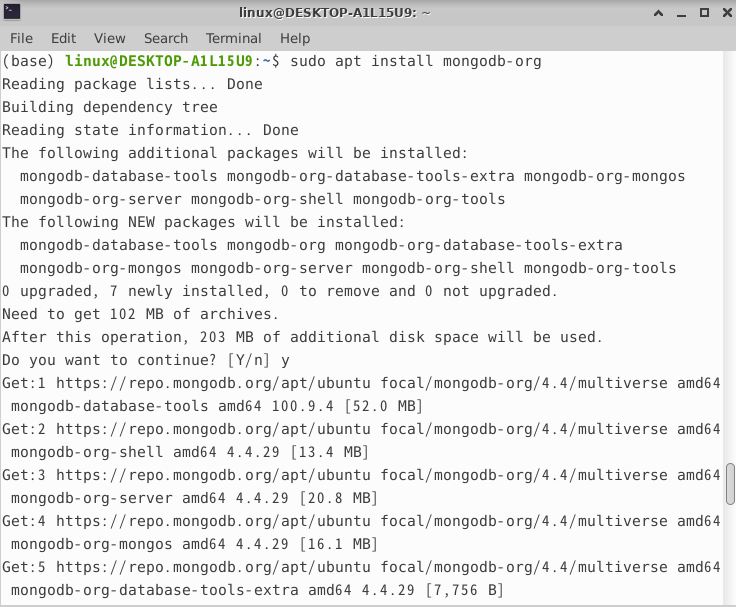
Step3. Try running it
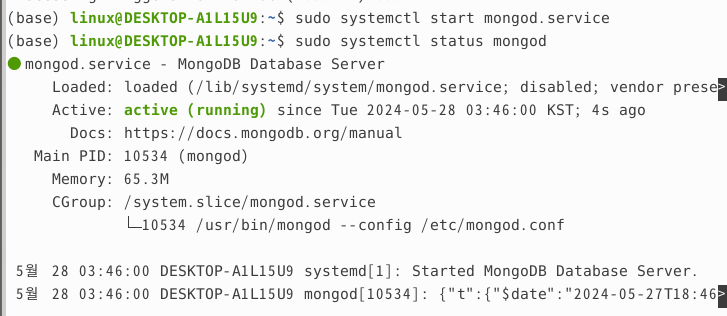
Once you have installed it, you should test whether it works properly. Let’s start the MongoDB service and check its status.
(base) linux@DESKTOP-A1L15U9:~$ sudo systemctl start mongod.service
(base) linux@DESKTOP-A1L15U9:~$ sudo systemctl status mongod
You can confirm that it is working properly, as shown in the image below.
🍳 Thoughts
This was my first experience installing and running a database. Although I had used databases that someone else had connected when working on open-source projects, I had never installed and managed one myself, and I had wanted to try it. This opportunity will serve as a stepping stone toward becoming more familiar with MongoDB and using it in my second brain project.
References